We have uploaded a updated GTD® Dashboard template to Biggerplate. This dashboard map is based on the Getting Things Done (GTD) approach developed by David Allen (www.davidco.com).
This map is designed to be a one-stop-shop for your GTD implementation. It is designed for Mindjet® MindManager® 14 and makes use of Markers and the Index capability to provide a simple but effective self contained GTD list manager.
GTD and Getting Things Done are registered trademarks of David Allen & Co.. Mindjet and MindManager are either registered trademarks or trademarks of Mindjet, LLC in the United States and/or other countries.
See the template here: http://www.biggerplate.com/mindmaps/HJ69tENb/all-in-dashboard-for-getting-things-done-tm

Showing posts with label GTD. Show all posts
Showing posts with label GTD. Show all posts
Tuesday, January 14, 2014
Saturday, January 1, 2011
Optimise your usage of Mindjet® MindManager® as your GTD List Manager
Web based 1 on 1 training in the GTD approach for Mindjet® MindManager® users
Are you an avid GTDer and MindManager user?
Are you an avid GTDer and MindManager user?
Are you keen to make better use of MindManager and leverage it for your lists, projects and a lot more?
Get 1 on 1 training in the use of MindManager for the integrated management of:
- Next action lists.
- Project and Someday/May lists.
- Integrated management of Focus Area.
- Goals, Vision and Purpose / Principles.
- Natural Planning Model™.
As you know, being focused and ready for anything, means you all can get more out of your day, complete more of the important things and to do it all stress free. MindManager is a great tool for helping you achieve this outcome.
Check out the details here - http://www.simplyorganised.ie/mindmanager.htm
Wednesday, December 22, 2010
Our Tools for Getting Things Done (GTD)
We have a three part approach to assisting with using MindManager as your GTD next action manager and general list manager:
- Part 1 is our GTD Template.
- Part 2 is TPAssistCapture, which is a tool for sending content to your maps - It helps you keep focused on the task at hand, by giving you the means to instantly capture, store and process your e-mails, ideas, tasks, notes and actions.
- Part 3 is the "Capture / Process / Store" capabilities delivered as part of TPAssist 2007.
We also have included a comprehensive and must have "Getting Started" guide with TPAssist 2007, it includes setup and routines for "Zeroing In", the Weekly Review and more. All you need to do is download the FREE 30 day trial and open the Help.
Saturday, September 4, 2010
TPAssistCapture for Web BETA
 Explore the latest Getting Things Done® (GTD®) focused tool from TPAssist.
TPAssistCapture for Web is a simple web capture tool that sends your items directly to your e-mail.
To get started, you simply login in using your TPAssist Web Account (Register here).
Then under "My Account" check the option to "enable TPAssistCapture for Web BETA".
Now simply, add the capture path to your Internet Browser favourites.
- Default capture web site: http://tpassist.com/cw
- Mobile device capture web site: http://tpassist.com/m/cw.aspx

When you need to capture a thought, just hit the URL in your web browser, enter the thought and click 'capture'. In an instant the thought will be delivered to your e-mail in-box ready to be processed.
Thursday, June 25, 2009
GTD Routines - The magic of the e-in-basket
David Allen often highlights the power of the in-basket to manage the stuff in your world (Those who are GTD Connect members can see a video of this concept)
I've adapted a method that makes use of this concept in an electronic form, i.e the e-in-basket. I've implemented this using mind mapping software. As well as using this e-in-basket for capture and clarifying, I use it to manage interruptions and I also use it to manage routines in a way that is efficient, effective and fun!
Using the e-in-basket to capture and clarify:
I use the e-in-basket as my "collection" point for anything that needs further clarification. I use capture tools on my desktop, in Outlook and with-in my task and project maps to "send" my "stuff" to the in-basket with, I simply process using the first-in-first-out approach. The "magic" in this aspect comes form the integration and simplicity of the integrated mind mapping environment: I can visually see my list of unprocessed stuff; I can "send" them to a project map and at the same time have them "linked" on the appropriate next action list; I can easy file items; and finally for less-than-2-minute items, I can just delete them when done.
The "magic" of this method is that because I'm using mind mapping software, I simply delete each task as I complete it. I don't need to record completing each individual step, so a simple delete, removes it from my focus and allows me to move on to the next item (or divert to handle an interruption). Very quickly my list of steps in my routine are all gone and I am clear and ready for an ything.
Having a set of predefined steps for what appears to be very straight-forward activities, may seem over the top, however until these routines become habits, a predefined list is essential to ensuring I spend as little time as possible thinking about how to do it, rather than just doing it.
A SIDE NOTE: This method is can be used as effectively in the physical in-basket context. i.e. you could develop each routine in your word processor and then print a load of them. When you decide you need to execute one of these routines, you simply grab one of these printed sheets and toss it into your physical in-basket.

This "magic" is not restricted to GTD routines. You could use it for all kinds of routines. Some example that come to mind include goals setting, personal performance reviews, weekly administration processing, yearly "spring cleaning".
I've adapted a method that makes use of this concept in an electronic form, i.e the e-in-basket. I've implemented this using mind mapping software. As well as using this e-in-basket for capture and clarifying, I use it to manage interruptions and I also use it to manage routines in a way that is efficient, effective and fun!
Using the e-in-basket to capture and clarify:
I use the e-in-basket as my "collection" point for anything that needs further clarification. I use capture tools on my desktop, in Outlook and with-in my task and project maps to "send" my "stuff" to the in-basket with, I simply process using the first-in-first-out approach. The "magic" in this aspect comes form the integration and simplicity of the integrated mind mapping environment: I can visually see my list of unprocessed stuff; I can "send" them to a project map and at the same time have them "linked" on the appropriate next action list; I can easy file items; and finally for less-than-2-minute items, I can just delete them when done.
Using the e-in-basket to manage interruptions:
A really effective way to "manage" your lists is to use your e-in-basket as a temporary location for the item you are "doing". For example, if I have a twenty minute window and I choose an activity from your @COMPUTER list, since I am physically at my computer, I simply select the item, and "send" item to my e-in-basket. Then I work away on that item. The "magic" in this process it that if I get interruption or complete the task, I just return to my e-in-basket to regain focus or move forward to the next action.
Using the e-in-basket to manage routines:
 I adapted the "zero-in" process, the Weekly Review and focus area review to suit my needs. I have built myself mind map templates containing each of the steps with-in these routines. When I come to the point where I need to carryout this routine I simply "toss" this list of tasks onto my e-in-basket.
The "magic" of this method is that because I'm using mind mapping software, I simply delete each task as I complete it. I don't need to record completing each individual step, so a simple delete, removes it from my focus and allows me to move on to the next item (or divert to handle an interruption). Very quickly my list of steps in my routine are all gone and I am clear and ready for an
 ything.
Having a set of predefined steps for what appears to be very straight-forward activities, may seem over the top, however until these routines become habits, a predefined list is essential to ensuring I spend as little time as possible thinking about how to do it, rather than just doing it.
A SIDE NOTE: This method is can be used as effectively in the physical in-basket context. i.e. you could develop each routine in your word processor and then print a load of them. When you decide you need to execute one of these routines, you simply grab one of these printed sheets and toss it into your physical in-basket.

This "magic" is not restricted to GTD routines. You could use it for all kinds of routines. Some example that come to mind include goals setting, personal performance reviews, weekly administration processing, yearly "spring cleaning".
Wednesday, June 3, 2009
Why I use Mindjet MindManager as the center of my GTD implementation.
I have a belief that the Getting Things Done (GTD) systematic approach as developed by David Allen, is a form of art.
I suggest the idea of art relates to how you wield your focus, your lists and apply your routines. When all the parts are working together GTD gives you amazing satisfaction and clarity, you gain perspective and control. Further more, you see beauty that perhaps only you appreciated, it is your art and you are the creator.
So what does this have to do with mind mapping software?
Well, in doing art, I prefer to use a blank canvas rather than stencils or traces. With a blank canvas I can go where I want, when I want and how I want. The blank canvas doesn't impede my creativity.
Mind Mapping is like a blank canvas, in that it is relatively free form and definitely a facilitator of creativity. Further more, by using software mind mapping tools, like Mindjet MindManager, I can save my work, revisit it, easily erase it and also remodel it. Ultimately, these tools help me get things done by allowing me to explore, re-use and evolve my "art".
Working in a mind map, allows me to visualise how my list items relate to none another, I can "picture" where I am at and where I need to be. For now, anyway, it is where I want to focus my GTD implementation.
You can read how I use MindManager for GTD via my blog.
TPAssist Limited is not licensed, certified, approved, or endorsed by or otherwise affiliated with David Allen or the David Allen Company which is the creator of the Getting Things Done® system for personal productivity. GTD® and Getting Things Done® are registered trademarks of the David Allen Company. For more information on the David Allen Company's products, please visit their website: www.davidco.com.
I suggest the idea of art relates to how you wield your focus, your lists and apply your routines. When all the parts are working together GTD gives you amazing satisfaction and clarity, you gain perspective and control. Further more, you see beauty that perhaps only you appreciated, it is your art and you are the creator.
So what does this have to do with mind mapping software?
Well, in doing art, I prefer to use a blank canvas rather than stencils or traces. With a blank canvas I can go where I want, when I want and how I want. The blank canvas doesn't impede my creativity.
Mind Mapping is like a blank canvas, in that it is relatively free form and definitely a facilitator of creativity. Further more, by using software mind mapping tools, like Mindjet MindManager, I can save my work, revisit it, easily erase it and also remodel it. Ultimately, these tools help me get things done by allowing me to explore, re-use and evolve my "art".
Working in a mind map, allows me to visualise how my list items relate to none another, I can "picture" where I am at and where I need to be. For now, anyway, it is where I want to focus my GTD implementation.
You can read how I use MindManager for GTD via my blog.
TPAssist Limited is not licensed, certified, approved, or endorsed by or otherwise affiliated with David Allen or the David Allen Company which is the creator of the Getting Things Done® system for personal productivity. GTD® and Getting Things Done® are registered trademarks of the David Allen Company. For more information on the David Allen Company's products, please visit their website: www.davidco.com.
How I use MindManager and TPAssist as my GTD list manager (Version 2)
Our tools have been evolved and so too has my approach to using MindManager for the Getting Things Done (GTD) approach developed by David Allen (http://www.davidco.com/).
My evolved approach takes advantage of the new capabilities in TPAssist 2007 version 1.6 and TPAssistCapture 1.2. My environment and system (described below) has been setup as per the Getting Started Guide in TPAssist 1.6's Help.
So here is how I currently implement my GTD Next Action and general list management with Mindjet MindManager and TPAssist tools ... (See a video of this approach)
I have an extensive implementation of TPAssist's “My Life” template and also the TPAssist role based Dashboard, resulting in near on 150 linked maps, some of which are whole projects and some of which contain lots of mini-projects.

My GTD "runway" map or as I am calling it, my “Ultimate Dashboard” mirror’s GTD’s “Organizing Categories” (see or download the template here). This is now my default map when MindManager opens. I have linked the Outcomes section to separate maps for a cleaner picture. I have linked my “My Life” and workplace dashboard to the “Areas of Focus”.
 Adding in projects and actions is presently achieved using three methods:
Firstly, I instantly capturing, storing and then "sending" new items to the Dashboard by using TPAssistCapture.

Secondly, emails that I don't delete are "sent to" my GTD system for further processing using TPAssistCapture for Microsoft Outlook.
And finally, I enter results of any natural planning directly into a project m ap, then link the next action to my Dashboard via TPAssist 2007's "Link At" capability.
Any items I capture are generally sent to the focus map to which they relate and in the same motion they are linked to the appropriate ACTION category. Capture items that require further clarification or filing are sent to my run-way "IN-BASKET".
As I complete actions (and the projects), I drop into the focus area or project map, update it using TPAssist’s existing journaling capabilities to record my progress and success, and then use TPAssist 2007's "Link At" command to send the next action to my run-way map. I don't get too worried about accurately grooming my run-way list because I know that my weekly and monthly reviews of Areas of Focus will show up anything that is new or duplicated.
 In addition, I am using TPAssist 2007's Outlook Integration to keep some of the next actions synchronised with Outlook and therefore my mobile device.
My key routines include my daily "zeroing", my weekly review and my monthly focus area reviews.
My "Zeroing" routine is as per the TPAssist 2007 Getting Started Guide (see our blog for a summary of this routine). A further technique I use to keep me on track, is that I have added these routines to the Map Parts Library in MindManager. To "zero", I simply add the Map part to my GTD IN-BASKET topic. The steps then appear as task topics and I just work through them. If I get interrupted, I can quickly and easily pick-up where I left off, avoiding the costly process of restarting.
My Weekly Review generally follows the steps outlined in David Allen's latest book, Making It All Work. (See our blog for a summary of this process). For the weekly review, I also use a Map Part and drop the list of items into my GTD In-Basket, as outlined above in "Zeroing".
On a monthly basis, I review my focus areas. I've split the reviews over three weeks, so I don't have too much to get through in any one sitting. i.e. at the start of the month I review my job related focus areas, then mid month I review my professional development and in the 3rd week, I review my personal and family focus areas. (See our blog for a summary of this process). As per the Zeroing and Weekly Review routines, I use a predefined set of steps that I drop into my GTD IN-Basket on the day of the review, so if I don't get through everything immediately, I can easily pickup the next step later in the day or the next day.
Though I am really happy with my current implementation of MindManager as my GTD list manager, there are still areas for improvement, especially around reducing some of the steps in reviews and working with completed items. There are also some areas of the Outlook integration that I would like to see improved. But for now it works, it keeps me focused and it definitely aids my productivity.
TPAssist Limited is not licensed, certified, approved, or endorsed by or otherwise affiliated with David Allen or the David Allen Company which is the creator of the Getting Things Done® system for personal productivity. GTD® and Getting Things Done® are registered trademarks of the David Allen Company. For more information on the David Allen Company's products, please visit their website: http://www.davidco.com/.
My evolved approach takes advantage of the new capabilities in TPAssist 2007 version 1.6 and TPAssistCapture 1.2. My environment and system (described below) has been setup as per the Getting Started Guide in TPAssist 1.6's Help.
So here is how I currently implement my GTD Next Action and general list management with Mindjet MindManager and TPAssist tools ... (See a video of this approach)
I have an extensive implementation of TPAssist's “My Life” template and also the TPAssist role based Dashboard, resulting in near on 150 linked maps, some of which are whole projects and some of which contain lots of mini-projects.

My GTD "runway" map or as I am calling it, my “Ultimate Dashboard” mirror’s GTD’s “Organizing Categories” (see or download the template here). This is now my default map when MindManager opens. I have linked the Outcomes section to separate maps for a cleaner picture. I have linked my “My Life” and workplace dashboard to the “Areas of Focus”.
 Adding in projects and actions is presently achieved using three methods:
Firstly, I instantly capturing, storing and then "sending" new items to the Dashboard by using TPAssistCapture.

Secondly, emails that I don't delete are "sent to" my GTD system for further processing using TPAssistCapture for Microsoft Outlook.
And finally, I enter results of any natural planning directly into a project m
 ap, then link the next action to my Dashboard via TPAssist 2007's "Link At" capability.
Any items I capture are generally sent to the focus map to which they relate and in the same motion they are linked to the appropriate ACTION category. Capture
 items that require further clarification or filing are sent to my run-way "IN-BASKET".
As I complete actions (and the projects), I drop into the focus area or project map, update it using TPAssist’s existing journaling capabilities to record my progress and success, and then use TPAssist 2007's "Link At" command to send the next action to my run-way map. I don't get too worried about accurately grooming my run-way list because I know that my weekly and monthly reviews of Areas of Focus will show up anything that is new or duplicated.
 In addition, I am using TPAssist 2007's Outlook Integration to keep some of the next actions synchronised with Outlook and therefore my mobile device.
My key routines include my daily "zeroing", my weekly review and my monthly focus area reviews.
My "Zeroing" routine is as per the TPAssist 2007 Getting Started Guide (see our blog for a summary of this routine). A further technique I use to keep me on track, is that I have added these routines to the Map Parts Library in MindManager. To "zero", I simply add the Map part to my GTD IN-BASKET topic. The steps then appear as task topics and I just work through them. If I get interrupted, I can quickly and easily pick-up where I left off, avoiding the costly process of restarting.
My Weekly Review generally follows the steps outlined in David Allen's latest book, Making It All Work. (See our blog for a summary of this process). For the weekly review, I also use a Map Part and drop the list of items into my GTD In-Basket, as outlined above in "Zeroing".
On a monthly basis, I review my focus areas. I've split the reviews over three weeks, so I don't have too much to get through in any one sitting. i.e. at the start of the month I review my job related focus areas, then mid month I review my professional development and in the 3rd week, I review my personal and family focus areas. (See our blog for a summary of this process). As per the Zeroing and Weekly Review routines, I use a predefined set of steps that I drop into my GTD IN-Basket on the day of the review, so if I don't get through everything immediately, I can easily pickup the next step later in the day or the next day.
Though I am really happy with my current implementation of MindManager as my GTD list manager, there are still areas for improvement, especially around reducing some of the steps in reviews and working with completed items. There are also some areas of the Outlook integration that I would like to see improved. But for now it works, it keeps me focused and it definitely aids my productivity.
TPAssist Limited is not licensed, certified, approved, or endorsed by or otherwise affiliated with David Allen or the David Allen Company which is the creator of the Getting Things Done® system for personal productivity. GTD® and Getting Things Done® are registered trademarks of the David Allen Company. For more information on the David Allen Company's products, please visit their website: http://www.davidco.com/.
Saturday, May 30, 2009
GTD Tip: Weekly Review with MindManager and TPAssist
This blog provides tips on conducting your weekly review when using MindManager and TPAssist tools as part of your Getting Things Done (GTD) system.
(Note: This material is mostly as suggested in David Allen's 3rd book, Making It All Work).
STEP 1: Get Clear
- Loose papers & materials collected
- Get "In" to zero (See our TIP on "Zero-In")
- Mind Sweep
STEP 2: Get Current
- Review Action Lists:
- For each main area (i.e. "Calendared', 'ASAP', "Agenda", etc, perform a TPAssist 2007 "localised" Tree Summary (Not Multi-map, leave that for the Monthly Reviews).
- Process the items overdue etc and review the rest.
- Review Previous Calendar Dates.
- Review Upcoming Calendar Dates.
- Review Waiting for Lists.
- Review Project (and Larger Outcome) Lists
- Open Project List.
- Sort the list and remove any duplicates (If sub-divided focus areas, do one area at a time).
- Read the title of each project and consider it's status in your own mind (Your review of your actions, calendar and waiting for above should be sufficient to "know" where each project stands.)
- Drop into Projects that you feel may need further consideration.
- Use TPAssist "Send To" for projects you want "parked" on the Someday / Maybe list.
- Review Any Relevant Checklists
- Review Calendar Later Starts
STEP 3: Get Creative
- Review Someday / Maybe List
- Sort the list and remove any duplicates (If sub-divided focus areas, do one area at a time.)
- Read the title of each project and consider it's status in your own mind.
- Drop into Projects that you feel may need further consideration and then "Link At" if the project is being acted on again.
- Back in the list, use TPAssist "Send To" and put the project title back on the projects list.
- Be Creative & Courageous
GTD Tip: Focus Area Review (Monthly) with MindManager and TPAssist
This blog provides tips on conducting your Getting Things Done (GTD) monthly focus area reviews when using MindManager and TPAssist tools.
If you are using separate Focus Area dashboards, i.e. one for your life management and one for your workplace responsibilities, it may be worth scheduling the monthly review for each aspect on separate weeks, to reduce "block" time required to complete your review. The process below applies to each of your focus areas, i.e. your life management and your workplace responsibilities:
If you are using separate Focus Area dashboards, i.e. one for your life management and one for your workplace responsibilities, it may be worth scheduling the monthly review for each aspect on separate weeks, to reduce "block" time required to complete your review. The process below applies to each of your focus areas, i.e. your life management and your workplace responsibilities:
- Open Focus Area Dashboard.
- Drop into Each sub area (map):
- Organise "new items" into their approach place
- "New Items" are those that have been delivered directly to the map via TPAssist Capture tools and may not be correctly organised. Drag these around your map so any "Link At" topics on your Dashboard can still find them.
- Run a TPAssist 2007 Task Summary, in "Normal" mode.
- Using the Task Summary, process items found in < 1 month.
- Follow the hyper-linked Task Summary topics.
- Use TPAssist 2007 "Link At" command to add new projects to project lists (If not sure, just add them anyway, the weekly review will pickup duplicates)
- Use TPAssist 2007 "Link At" command to add next actions for new projects to the actions list (As per project list, if unsure, add them anyway as use of the lists and then weekly review will pickup duplicates.)
- Disgard the remaining Task Summary.
- At the conclusion update the Focus Area Dashboard:
- In the Focus Area Dashboard, with all sub maps open, run a TPAssist 2007 Tree Update in Multi-map mode
- Review the Projects List
- Run a TPAssist 2007 Tree Update in Multi-map mode to bring in latest project status for the focus areas under review (Use "Localised" scope if only reviewing a subsection of the project list).
GTD Tip: Zero-In using MindManager and TPAssist
As you use your system and even conduct your Weekly Review, you will inevitably be "Zeroing IN".
Below is a variation of the "Zero In" process populated with steps that you may find useful as you manage your lists via MindManager and TPAssist tools.
Below is a variation of the "Zero In" process populated with steps that you may find useful as you manage your lists via MindManager and TPAssist tools.
- Empty Wallet, Bags, Brief Cases etc into your Physical In-Tray.
- Empty Tickler into your Physical In-Tray.
- Empty E-Mail IN-BASKET (See http://tpassist.blogspot.com/2009/05/gtd-style-e-mail-processing-using.html for setup details).
- Process Physical In-Tray.
- Process Audio/Voice Recordings.
- Process any electronically captured notes (i.e. using the 2 minute rule and the workflow)
- Synchronise PDA (and if using Outlook, use TPAssist 2007's Document Tools to bring back changes).
- Review Dashboard "ACTION" lists - "Send Topic" on any items that are complete or need attention to the IN- BASKET.
- Process any other form of electronic "IN".
- Process the Dashboard "IN-BASKET", using the 2 Minute rule and Workflow to determine where the item should be sent.
- Re-Synchronise PDA.
GTD Tip: Using your IN-BASKET when on the runway

As you start populating your MindManager dashboard and using TPAssist to facilitate your GTD system, you will inevitably start looking for ways to improve your system.
A really effective way to "manage" your lists is to use your IN-BASKET as a temporary location for the item you are "doing".
For example, if you have a twenty minute window and you choose an activity from your @COMPUTER list, since you are physically at your computer, make use of Capture / Store / Process to help you get underway and also be ready for any interruption. Simply, select the item you are going to work on, click the Hyperlink to bring the Focus map into play so you can track your actions and also gain access to related materials, then return to Dashboard, now click "Send Topic" and send the topic to your IN-BASKET. Then Save All, and return to your active focus map and work away. In this way, if you get interruption or complete the task, you can just click "Process" and get your focus back via the IN-BASKET.
GTD style e-mail processing using TPAssistCapture for Microsoft Outlook

This tip outlines how TPAssist 2007 can help turn Outlook 2007 into a Getting Things Done (GTD) collection point, and do all your clarifying, organising and doing, in MindManager.
To configure your system ready for this approach, you need to complete the following steps:
1. Download and install TPAssistCapture for Microsoft® Outlook® (http://www.tpassist.com/downloads/)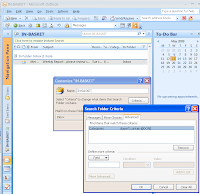

2. Configure a Search Folder as your IN-BASKET.
The Search Folder should be configured to look for items where "Categories doesn't contain @DONE" and it should also be added to your favourites. For details on this process, look for "Convert your e-mails into next actions" in the Getting Started Guide in Help after you have installed TPAssistCapture for Microsoft® Outlook®).
3. Select all your old emails and categorise them as "@DONE" (leaving those that you still need to process).

4. Now for e-mails that you don't action immediately or delete, select them in the list view or open each, the use the TPAssist Capture icon to expose the Category Selection dialogue. Now pick your category (typically your "IN-BASKET") and click send.
5. After your e-mail IN-BASKET is empty, switch over to your Dashboard mind map, and process your captures.

6. From here you can work with each e-mail via the "attachment" capability of the MindManager topic.
Friday, March 20, 2009
How I use MindManager for Getting Things Done (GTD)
UPDATE: 3rd June 2009: Version 2 of my implementation is now in the blog. Read about it here...
-------------------------
Having been asked on several occasions to explain how I use Mindjet MindManager to implement the Getting Things Done (GTD) approach developed by David Allen (www.davidco.com), I decide to provide a summary of I do it for all to see. Please feel free to share your experience and give me feedback. Whilst still learning, the one thing I am clear about regarding GTD, is that it is an evolutionary process of continuous improvement.
So here it is...I have an extensive implementation of TPAssist's “My Life” template and also the TPAssist role based Dashboard, resulting in near on 150 linked maps, some of which are whole projects and some of which contain lots of mini-projects.
My GTD runway “road map” or as I am calling it, my “Ultimate Dashboard” mirror’s GTD’s “Organizing Categories” (see/download template here). This is now my default map when MindManager opens. I have linked the Outcomes section to separate maps for a cleaner picture. I have linked my “My Life” and workplace dashboard to the “Areas of Focus”.
Adding in projects and actions is presently achieved using two methods. Firstly I am instantly capturing, storing and then "sending" new items to the Dashboard by using TPAssistCapture. These capture items are sent to my roadmap "IN-TRAY" for further clarification, sent directly to the ACTION category or even directly into a project map (if it isn't the next action or is more an idea). Secondly I am manually maintaining the Projects List and Actions list.
Maintaining context of my projects and next actions is achieved by dropping into the focus area map, locating the project or next action and then using the Topic-Right-Click “Copy as Hyperlink” MindManager capability to extract the linked topic. I then insert this hyperlinked topic into the project list or in the case of each project’s next action, in the appropriate category of the Ultimate Dashboard. In this way I can just follow the hyperlink back to the My Life or Dashboard map to process the action, using TPAssist’s existing journaling capabilities to record my progress and success.
As I complete actions, I drop in the next action and then I just delete the completed topic listing from the Ultimate Dashboard. With completed projects I just delete them from the Projects list, knowing that my monthly reviews of Areas of Focus will show up anything that is new.
In addition, I am using TPAssist 2007's Outlook Integration to keep some of the next actions synchronised with Outlook and therefore my mobile device.
There are some aspects that are for now a little cumbersome, however I feel "spinning the wheels" myself, at least for now, gives me a great idea of what needs to be automated in the next update to TPAssist 2007.
GTD and Getting Things Done are registered trademarks of David Allen & Co..
Wednesday, March 18, 2009
GTD Summit, MindManager® and TPAssistCapture - Capture, Process, Reduce Distraction
We've published a new video demonstrating TPAssistCapture.
This video uses participation at the recent GTD Summit to illustrates how TPAssistCapture for Mindjet® MindManager® can be used to instantly capture, queue and process your ideas, tasks, notes and next actions.
See it on the TPAssistCapture product page on our web site.
This video uses participation at the recent GTD Summit to illustrates how TPAssistCapture for Mindjet® MindManager® can be used to instantly capture, queue and process your ideas, tasks, notes and next actions.
See it on the TPAssistCapture product page on our web site.
Subscribe to:
Posts (Atom)